Use Measurement range and resolution (optional) when a controlled instrument specification is available. Select the quantity and compatible unit, then enter lower and upper instrument range and positive resolution. Leave unknown legacy values unrecorded. New calibration work freezes this profile for its evidence checks; later equipment edits do not reinterpret submitted history. Resolution never rounds or replaces the actual recorded observations.
Register critical equipment before release
High or critical equipment can be registered, assigned and controlled while awaiting evidence. A draft or quarantined record remains manageable. Setup progress, lifecycle state and a future initial schedule do not establish a current completed calibration or permission to use equipment.
Operational release for high or critical equipment requires an authorised quality decision with current approved acceptable evidence covering each applicable requirement's current revision. At least one applicable requirement must exist; draft and suspended requirements must be resolved and active. Both the evidence-derived due date and the requirement due date must be after the site's current date. Independent release and resolution of active investigations are enforced by the backend. Changing into or out of high or critical criticality requires quality authority; raising active equipment into either level requires current evidence.
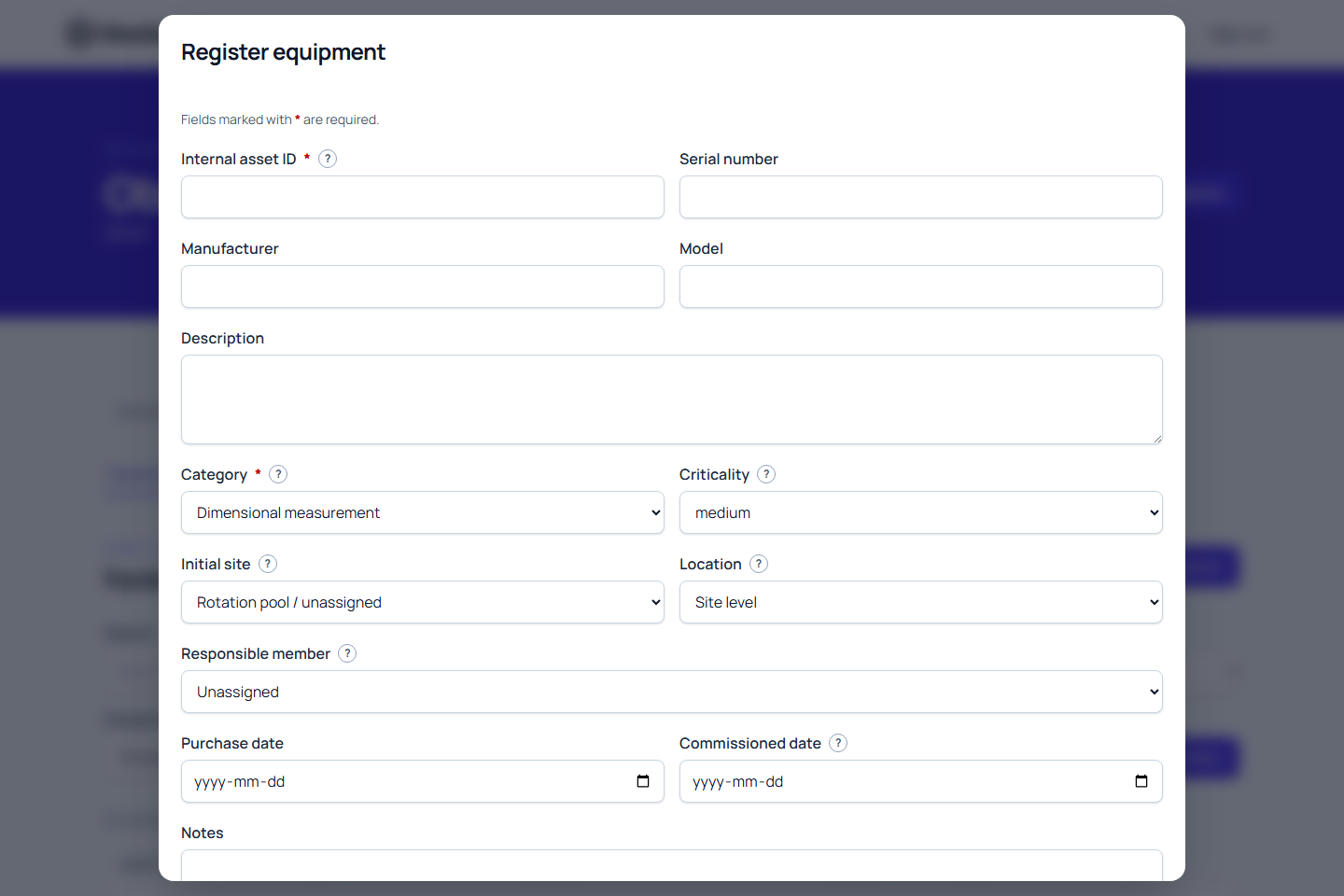
Register each physical instrument or asset as a separate record. Registration captures identity and current placement first. Calibration requirements and completed calibration work are created later, in separate screens.
On narrow screens or at increased browser zoom, the register filters stack vertically. Scroll the equipment table horizontally to reach all columns and View details. The registration dialog keeps your entered values as you move between fields.
Before you begin
You need equipment-create permission and at least one active equipment category. If no active category is available, registration is disabled until an authorised user creates or activates one.
Use Create a category from the register when you have category-management permission, or ask a colleague to prepare it. If categories cannot be checked, use Retry options; a loading failure does not mean the category list is empty.
A reference standard is not required to register equipment. Reference-standard profiles are added to an existing equipment record later when the asset will establish traceability for calibration work.
If you plan to deploy the equipment straight away, create the destination site and location hierarchy first. The site must be active, and any selected location must be available for assignments.
Use an internal asset ID that is unique inside your organisation. A serial number can be reused, but the internal asset ID should be unique for your records.
Register a draft
- Open the correct organisation.
- Select Assets.
- Select Equipment.
- Select Register equipment.
- Enter the required Internal asset ID and equipment identity.
- Select an active category.
- Select the appropriate Criticality.
- Add manufacturer, model, serial number, dates, and notes when available.
- Choose the initial placement:
- Leave Initial site empty to put the device in the rotation pool.
- Select an active Initial site to record an immediate deployment.
- Select an optional Location for a more precise placement.
- Select an optional Responsible member whether deployed or still in rotation.
- Select Register draft.
The new record and chosen initial site/location are saved together, with placement history and audit evidence. Assignment permission is required for an initial deployment; without it you may register in rotation and ask an authorised colleague to assign it. An invalid placement fails the whole creation rather than leaving a partial record. The new record is saved with draft status. This does not activate the equipment or create a requirement yet.
If the category has suggested defaults, review them and select Apply category draft proposals for this new draft. An entered criticality is preserved. A reference-standard suggestion offers a separate profile-review action after registration; it does not create a reference standard. Read Equipment categories for the distinction between catalogue defaults and controlled records.
After registration, the equipment detail page shows an Equipment setup checklist. It helps you move from identity and placement to activation, requirement creation, method linkage, schedule activation, and a review of the route configuration for every active requirement. Unknown work-specific checks remain visible. Passing the assessed configuration checks does not approve work, establish compliance or release the equipment for use.
This checklist is guidance only. Metra still validates each action before activation or work creation.
The method step describes the route actually saved: a provider method reference, a controlled procedure revision, or a justified simple-check route. A functional check does not claim to have a controlled procedure when its approved policy says one does not apply.
When the equipment checks and selected active requirement have no known blockers but evidence can only be checked for particular work, Open work recording and check evidence opens that requirement's recording form. The selected requirement is named beside the action. Supply the applicable provider uncertainty, sources and other evidence there. An unrelated internal requirement's missing budget does not block an otherwise valid external route; every requirement's blockers still remain visible. Opening a draft does not approve the result or release the equipment for use. Equipment-level and selected-route blockers must be resolved first; unavailable checks remain explained rather than being treated as successful.
Resume unfinished registration
Metra keeps unfinished registration inputs in the current browser tab, separately for each organisation and membership. Leaving an edited form prompts you to confirm. On returning or reloading, select Restore unsaved form to review your inputs, or Discard unsaved form to start again. Current categories, sites and members are checked again; unavailable choices must be replaced before saving.
Recovery is cleared only after registration succeeds. It is browser-tab recovery, so keep the tab open until you have saved; it is not a saved equipment record or a draft available on another device. If browser storage is unavailable, Metra tells you to keep the form open.
You can register equipment in rotation without a site. Assign an active site before creating or assigning its calibration requirement; a requirement uses that placement for scheduling. The checklist links to site assignment when this step is missing. If requirement access or loading is unavailable, setup is shown as Not checked instead of treating the requirements as missing.
Choose between a site and the rotation pool
Use the rotation pool for assets that are not yet deployed, or are temporarily out for maintenance or calibration.
A rotation-pool asset has no current client, site, or location assignment, but it can still have a Responsible member.
Choose an initial site only when deployment is starting immediately. For later movement, use the assignment workflow so the history of previous placements is preserved.
Read Equipment and rotation before moving sensors or instruments between clients and sites.
Review and activate the record
- Open the newly registered equipment.
- Review identity, category, criticality, and placement.
- Correct ordinary details with Edit if needed.
- Select Activate when the item is ready for operational use.
Assignment and activation are separate actions:
- Assigning equipment does not activate it.
- Activating equipment does not create requirements or work records.
Protect your traceability
- Do not register the same physical asset twice to hide a mistake.
- Use assignment for later location or client moves.
- Use explicit lifecycle actions for quarantine, out-of-service, retirement, and archiving.
- Keep significant status changes documented in history.
- Retired or archived equipment stays in history and is not removed from records.
If registration fails
- Confirm an active equipment category exists.
- Confirm the internal asset ID is unique for this organisation.
- Confirm the selected site is active.
- Confirm the selected location belongs to that site and is available.
- Confirm the responsible member is active and belongs to the organisation.
- If Register equipment is not shown, ask an owner or administrator to review your permissions.
See Troubleshoot unavailable selections for missing categories, destinations, and members, or Troubleshoot access and missing actions if the page or action is not visible.
Next steps
- Equipment and rotation
- Create a calibration requirement
- Create sites and location hierarchies
- Get started with Metra
Equipment used as a reference standard
Register the physical asset once. If it will support calibration work, set its profile in Equipment > Reference standards. Calibration status and expiry are derived from approved evidence, not entered manually on the asset itself. See Register a reference standard.
Equipment register filters and page selection are retained in the page URL. Returning with the browser Back button restores the same view; copy the URL to share that filtered register with another authorised member.
Protect unfinished edits
Equipment edit, placement, category and lifecycle forms warn before discarding changes. Their dialogs keep keyboard focus inside the form and return focus to the action that opened them. Save before closing the tab: existing-record edits use warnings, rather than browser draft recovery. Criticality describes the operational or quality impact of unavailable or inaccurate equipment; responsibility identifies who coordinates its care.
Field and internal work
Review the optional portable-equipment choice explicitly; existing equipment remains unspecified. Reference-standard status still comes from the existing standard record. See portable equipment and standards.
Commission equipment before operational release
Keep unreleased equipment in its truthful lifecycle while collecting authorised commissioning evidence. Requirements can activate on draft equipment when their configuration is valid; controlled work still checks method, person, site, date and source suitability. This avoids requiring prior operational release to collect the evidence needed for release.
The Operational release prerequisites panel in Activate and Restore lists all server-projected blockers, including each applicable requirement. Correct the listed records, refresh the checks and confirm with the appropriate independent quality authority. The server rechecks the current state on confirmation. A passed configuration check or visible action does not release equipment, and an unresolved investigation or missing applicable evidence remains a blocker.
Permanent ownership and repeated registrations
Record Permanent ownership separately from placement: Not recorded / unknown, Our organisation, or A client with an existing owner client. Do not infer ownership from the current site. Changing permanent ownership requires a reason; relocation and custody changes keep the recorded owner. Legacy equipment remains unknown until reviewed. New work can show a visible recipient suggestion from the server's current ownership checks; review it for that particular job.
For automatic numbering, an authorised organisation administrator opens Automatic asset ID settings and saves a prefix. A category may override that prefix. Choose Generate the next asset ID during registration; the server allocates a unique number transactionally when the draft is saved. The displayed sequence is informational and may advance during another registration. Manual IDs remain available and existing IDs are unchanged.
Choose Save and add another to save and reopen a fresh registration with the server-approved safe details from the previous item. Identity, ownership and placement are cleared. From an equipment detail page, Copy safe registration details starts a new draft with category, portability, criticality, manufacturer, model and description only. Enter a new asset ID and serial number, and review ownership and placement. Completed work, certificates, signatures and accepted evidence are never copied.