Open Setup to see your role-guided tasks. A member with setup-management permission can answer questions about the organisation's activities, accreditation and evidence. Combine internal calibration, external providers, customer services, verification and testing equipment control as needed. Save and review the answers before personalising the checklist. Existing saved information counts as configured automatically; missing information links to its editor. Owners using external providers can start with equipment, site placement, intervals and provider certificates. Technical setup appears where the actual work needs it.
Obsidian Metra helps your organisation register equipment, control calibration schedules, record completed work, retain certificates, and prepare audit evidence. Think of it as: set up your workspace, schedule work, complete jobs, and keep trustworthy evidence.
Open Setup for Needed to get started: create an active equipment category, register an item, create or review its site, assign the equipment to that site and define its calibration requirements. Choose a pilot instrument to follow through to evidence. Optional clients, templates, branding and integration tasks appear under Configure when needed. Starter progress counts completed work separately from deferred tasks and does not require those later options. See Complete your organisation setup for returning to tasks, delegation and safe deferral.
New to calibration terminology?
The Calibration concepts guides explain the ideas behind the fields you see in Metra, with practical examples:
- Calibration and traceability: calibration, verification, adjustment and reference standards.
- Accreditation and scopes: what an accreditation covers and why one profile can contain several scopes.
- Measurement uncertainty: uncertainty budgets, coverage factors and CMCs.
- Tolerances and decision rules: how permitted limits and uncertainty affect a pass or fail decision.
- Read a calibration certificate: understand results, errors, corrections and supporting evidence.
Use the Glossary for a quick definition, or select Calibration concepts in the Guides journey filter to browse these explanations together.
Find public guides and articles
You can read the Guides and Blog without signing in. The website's sitemap helps search engines discover public pages, guides and published blog articles. It does not list your account, organisation records or private calibration work.
Before you begin
You need an active, email-verified account and an active membership of an organisation. To create an account, enter your first name, last name, and work email address. Open the verification link sent to that address, then choose your password. You can either create an organisation or accept an invitation from an existing organisation.
If public signup is unavailable, ask an organisation owner or administrator for an invitation and follow Join an organisation from an invitation. Invited account creation and invitation acceptance remain available on invitation-only deployments such as the demo.
Your available pages and actions depend on your role in that organisation. If a control is missing, ask an organisation owner or administrator to confirm your access.
Signing in creates a secure browser session. Metra does not expose long-lived credentials in the page, and a revoked or expired session returns you to Sign in. Each browser tab only keeps the minimum information needed to keep that tab safe while you work.
See Roles and permissions before inviting members or changing access.
If you created a paid organisation, an owner or organisation administrator must also complete and maintain its subscription. See Manage organisation billing.
After joining an organisation, select Setup in the organisation navigation to open a checklist tailored to your role and effective permissions. This link remains available after you complete or defer your tasks, or dismiss the guidance. While tasks remain outstanding, a progress bar also offers a quick return to Setup. Every item is optional: you can defer it, return later, or continue directly to the dashboard. Owners and organisation administrators can delegate shared setup tasks, but assignment does not grant the recipient any additional access or technical authority. See Complete your organisation setup.
Open Account to update your name or change your password. These settings apply across your organisations. See Manage your name and password.
Select the right organisation
Users can belong to more than one organisation and can have a different role in each one. Ordinary sign-in resumes the last currently authorised organisation in this tab, or the single active organisation. New invitations and unfinished paid setup still show their next step. Choose Organisations to open the chooser explicitly, and check the organisation name before creating or changing records.
All clients, sites, equipment, calibration work, certificates, and audit evidence belong to the selected organisation. Records cannot be moved or linked across organisations.
Find page actions and filters
Each workspace starts with its title and a short description. Available page actions, such as creating or importing records, are grouped beside the heading or below it on a narrow screen. The actions shown depend on your permissions.
On smaller screens, select Open account menu to reach Account, Guides, Organisations and Sign out. Select a destination, press Escape, or click outside the menu to close it. Escape returns keyboard focus to the menu button.
Page explanations and field hints use smaller, semibold text to distinguish guidance from entered values and record content. Hints remain visible beside the controls they explain.
Filters, record lists and supporting sections follow the heading. On smaller screens, controls stack and action buttons wrap onto additional lines. Wide record tables can scroll horizontally within their panel. Use keyboard navigation to move through controls and keep the visible focus indicator in view.
Recommended setup order
Start in Setup: an owner or administrator can tailor the suggested tasks to your organisation's activities, accreditation and evidence, including whether you generate certificates in Metra. Follow the recommended next action or choose an equipment item to follow through site placement, its requirement and calibration evidence. You can return to setup from organisation pages and continue using existing records.
The Setup workspace organises this sequence into role-appropriate tasks and keeps completed work separate from skipped work. Its progress is guidance, not a statement that the organisation is compliant, accredited or ready for an audit.
- Create or import at least one active equipment category.
- Register equipment or import an asset register. You can register equipment in the rotation pool before creating its site; a reference-standard profile is not a registration prerequisite.
- Create or review an active site with the correct timezone and assign the equipment to it. A client is needed only for a customer-owned site; locations are optional placement detail.
- Add a requirement to that equipment, either directly or from an active reusable template. Prepare the approved procedures, reference standards, uncertainty budgets and decision rules that its chosen policy requires.
- Review and activate the equipment and requirement through their normal lifecycle actions, supplying the initial due date when activating the requirement.
- Use the Dashboard and Calibration work areas to manage due work, record results, retain the required certificate or check evidence and complete the normal independent review.
Reusable templates, customer records, Metra certificate branding and numbering, and integrations can be configured when your workflow needs them. External provider evidence does not require all the internal controlled-calibration setup. Verification or functional checks without an accreditation claim can use justified acceptance criteria and results without a certificate where their requirement permits this. Quality → Quality evidence provides controlled evidence and personnel authorisations, including for internal verification. Its Audit readiness view remains specific to ISO 17025. Accreditation profiles are available when the work or audit needs them; setup answers do not authorise an accredited claim.
Open Data Import to follow the import-assisted setup path. Imported controlled procedures and requirement templates always remain drafts: importing source content never submits, approves, activates or assigns it. See Choose a setup import.
Internal and on-site work
Choose Internal work — our organisation when planning work for your own organisation. You can record a requester, recipient and department without creating customer records; see Plan internal work and reports.
If you perform field work, answer the optional on-site setup question, review the approved procedure and personnel place-of-work scopes, and record the actual work context before guided execution. Follow Prepare and perform on-site work. Use portable equipment and standards and work-order reservations to plan kit use. Reservations do not move equipment or prove its fitness. Site contacts and access notes explains private operational details and optional contact disclosure on outputs.
Clients, sites, and locations
For the operational setup procedure, see Create sites and location hierarchies.
A client groups customer sites. A site can instead remain without a client when it represents one of your organisation's own facilities.
Every site has a timezone. Obsidian Metra uses that timezone when determining the local calendar date for due, due-soon, and overdue calibration requirements.
Locations form a hierarchy within one site. For example:
- Main building
- First floor
- Temperature laboratory
- Environmental chamber 2
Only active sites and operational locations can receive a new equipment assignment. Making a location inactive does not erase its history.
The normal equipment workflow
Equipment and calibration work are separate records:
| Record | What it represents |
|---|---|
| Equipment | The physical instrument or asset |
| Calibration requirement | A recurring obligation and its schedule |
| Calibration event | Work performed on a particular date |
| Calibration certificate | Versioned documentary evidence for an event |
| Out-of-tolerance case | The investigation opened for an approved failed or indeterminate result |
One equipment item can have several requirements, such as annual external calibration and a six-monthly internal verification.
Follow Register equipment to create a traceable draft. Read Equipment and rotation before registering movable sensors or instruments. Read Calibration work for the end-to-end requirement, event, certificate, and investigation workflow.
Run the same procedure for several devices
When devices genuinely share the same setup and approved method, use a group calibration session to record shared work once and enter each device's own readings. The requirements must use the same exact approved, group-enabled procedure revision. Results, submissions, independent approvals and certificates remain individual. A work order can organise the work, but does not itself create a shared procedure session.
Start with Prepare a procedure for group calibration, then follow Calibrate a group of devices. For failed saves or an interrupted submission, use Resume and troubleshoot a group calibration.
Use the dashboard
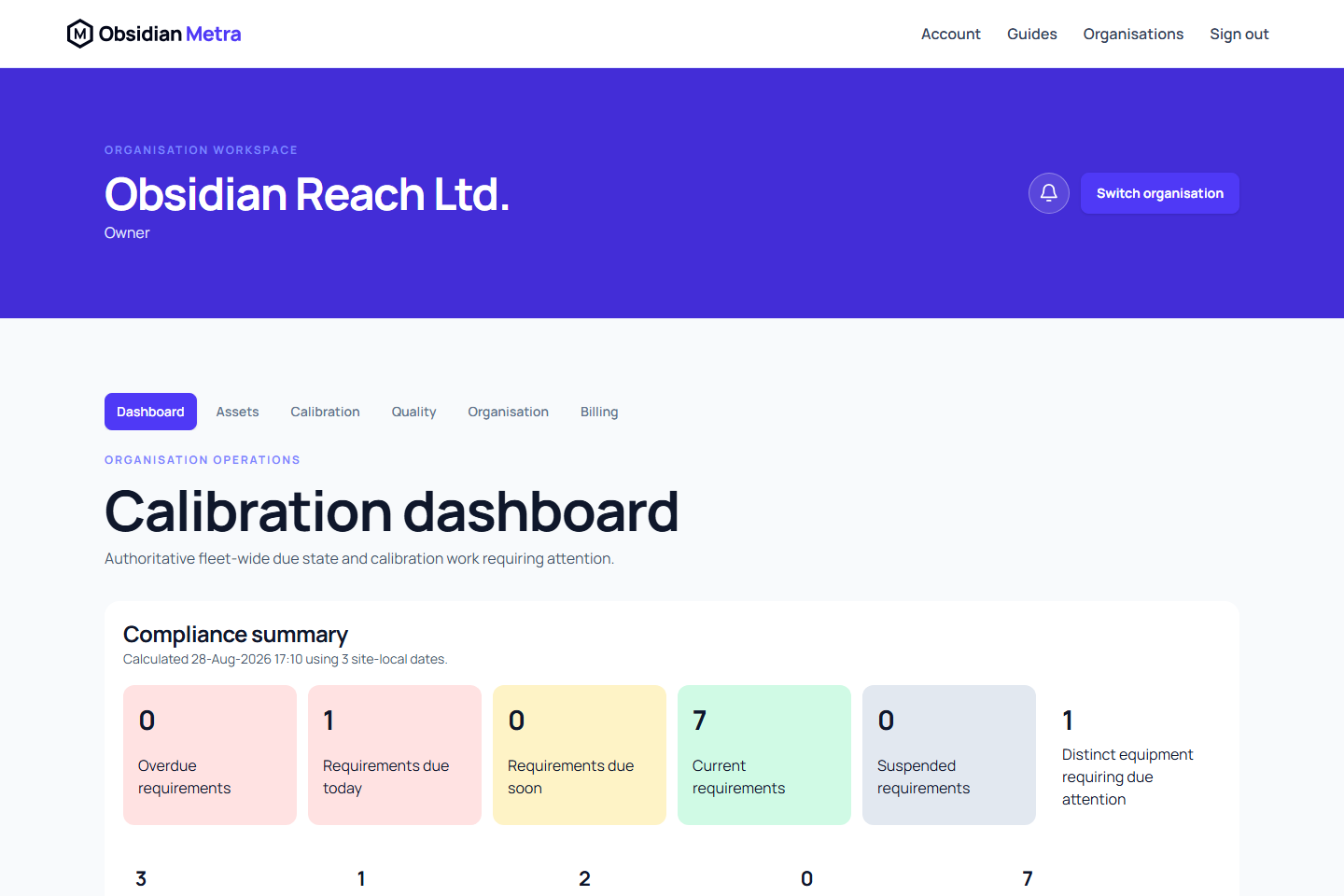
The Dashboard is the operational starting point after selecting an organisation. It shows calculated counts and a paginated requirement work queue.
See Use the calibration dashboard for filters and queue actions, and Understand due status for how due dates are handled.
Use its filters to narrow work by due status, site, location, category, responsible member, risk, calibration type, or date. Metra calculates due status from your data, so avoid managing a separate “truth” spreadsheet for due states.
Records and corrections
Quality-related records keep history. Completed work, approvals, certificates, requirement revisions, equipment status changes, and movements are not silently overwritten or deleted.
Use the lifecycle actions (replace, supersede, or void) when a correction is needed. Avoid creating a duplicate record just to hide a mistake.
Development demonstration data
A local environment populated by the development CLI contains illustrative organisations, memberships, equipment, controlled procedures, reference standards, uncertainty budgets, decision rules, and calibration events in several workflow states. These records exist to demonstrate and test the product; they are not accredited evidence and must not be represented as real calibration work.
Dummy generation is intended for local or disposable development databases and is designed to be repeatable. Never load the repository's dummy identities or shared development credentials into a production environment. Production organisations must create their own members, controlled records, evidence, and Stripe subscription through the supported application workflows.
Next guides
Use the Glossary when product terms are unfamiliar, and Troubleshoot access and missing actions when an organisation, page, or action is unavailable.
- Equipment and rotation
- Calibration work
- ISO 17025 dossiers
- Manage organisation billing
- Complete your organisation setup
Unwanted drafts
For a saved draft that is no longer needed, use Discard draft and enter a reason. See Discard an unwanted draft.
Keep unfinished edits safe
Read Save edits and sign out safely for navigation warnings, supported same-tab draft recovery and what is erased on sign-out.